If you want a quick and easy way to create custom stickers and other products for Redbubble, you’re in the right place! This tutorial will explain how to easily make stickers with transparent backgrounds for Redbubble using Procreate, Photoshop, or Canva.
When you are creating your sticker, keep in mind that Redbubble will automatically add a white border. Keep this in mind when you’re creating your artwork. Once uploaded to Redbubble, you’ll be able to preview the sticker before adding it to your shop.
Using an iPad and Procreate to Create Redbubble Stickers
- In Procreate, create a new canvas by clicking the Plus icon in the top right-hand corner. Any of the standard sizes will work, but I typically use Square.
- Draw your artwork, making sure any white space is filled in.
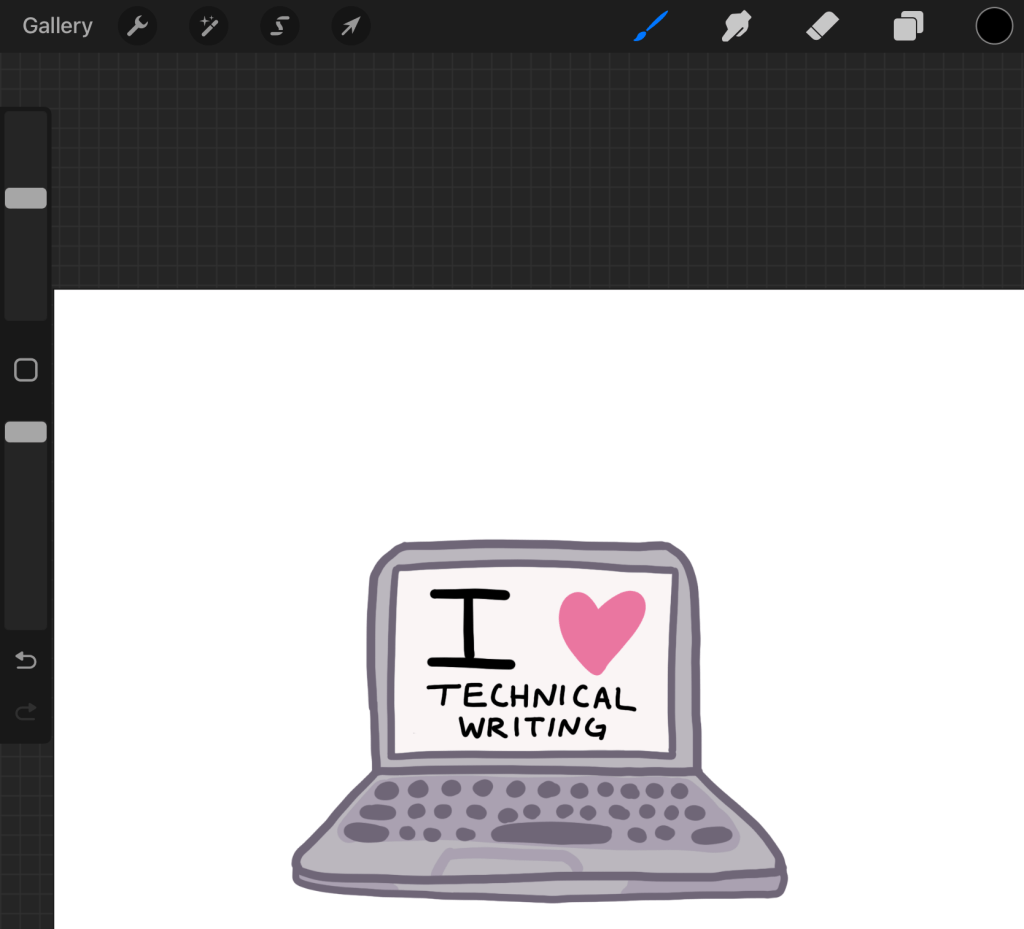
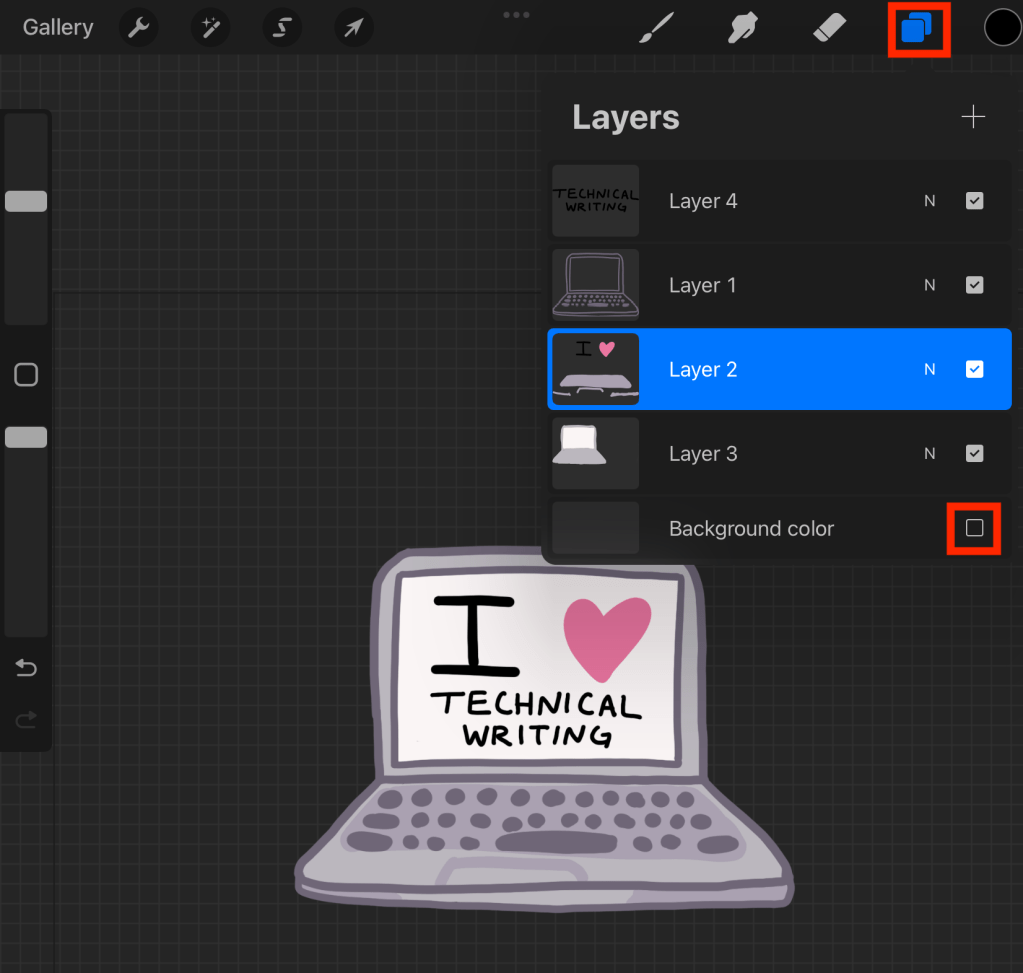
- Click the Layers dropdown and deselect the Background color layer. This will turn off the background so that it is not included in your sticker.
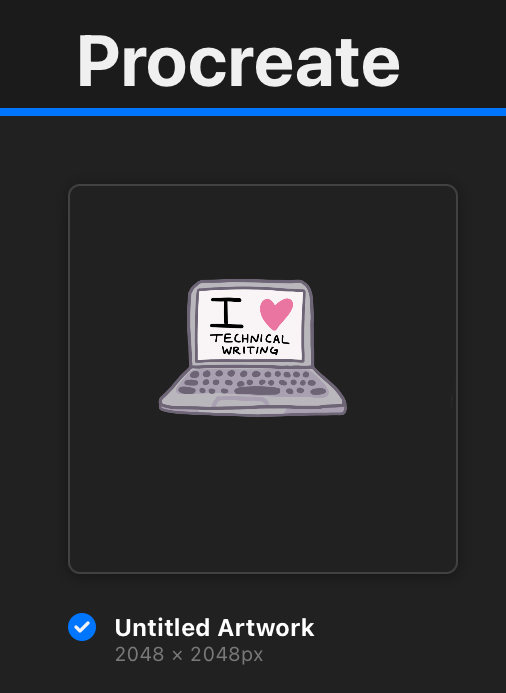
- Navigate back to the Gallery page, click Select, and select your drawing.
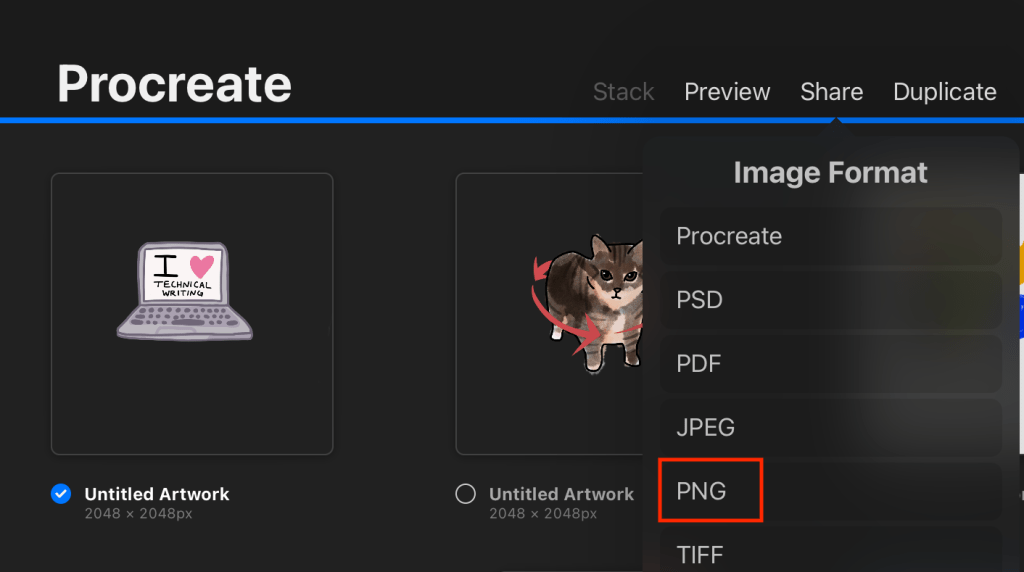
- Click the Share dropdown and select PNG as the image format. This format will ensure the background is transparent.
- Now, you can email or Airdrop this file to yourself so it is available on your computer. The PNG will be ready for upload to Redbubble.
Using Photoshop to Create Redbubble Stickers
- In Photoshop, create a new document. Any size canvas is fine, but for stickers, I would recommend 5×5 inches with a resolution of 300 ppi.
- Import or create your artwork.

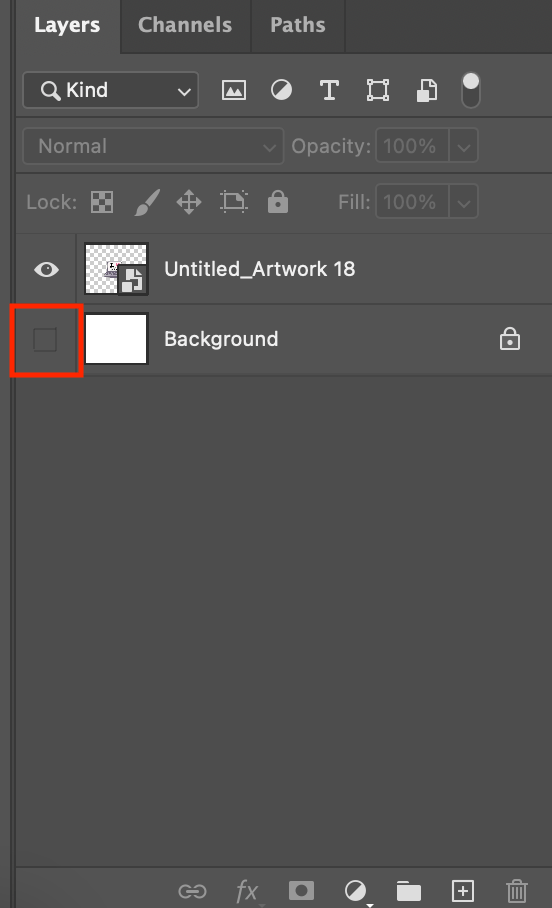
- In the Layers panel, click the
 icon next to Background to turn off the Background layer.
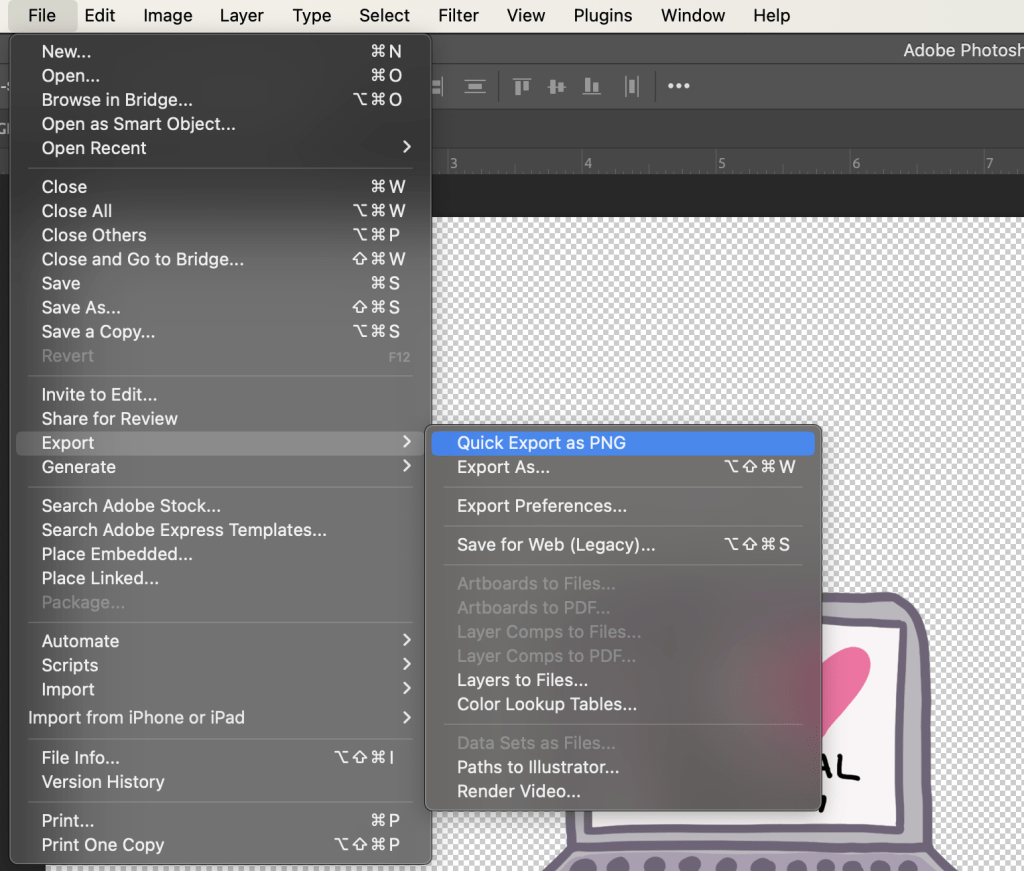
- Navigate to File > Export > Quick Export as PNG. This format will ensure the background is transparent.
- Now, your file is ready for upload to Redbubble.
Using Canva to Create Redbubble Stickers
You can use Canva Pro to create stickers with transparent backgrounds. If you do not have Canva Pro, you can still use Canva’s sticker templates to create circular, square, and oval stickers.
- In the top left-hand corner, click Create a New Design.
- If you would like to use one of Canva’s pre-sized sticker templates (for a circular or square sticker, for example), search “Sticker”. If not, any blank template larger than 3×3 inches will work.
- Create your artwork.
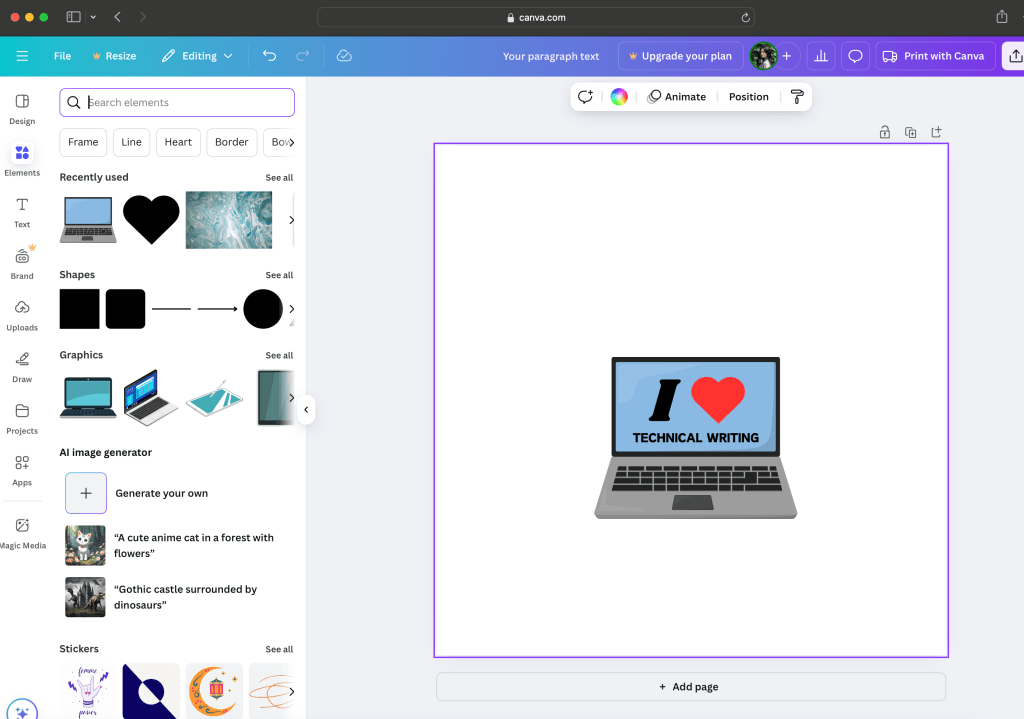
- In the top right-hand corner, click Share.
- If you have Canva Pro, in the Share dropdown, click the Transparent Background checkbox.

If you do not have Canva Pro, you can still download your design with the background included. In this case, make sure you are happy with the placement of your design before downloading.
- Click Download. This file will be ready to upload to Redbubble.
I hope this guide helps you create quick, easy, and beautiful stickers! If you want to buy an I Love Technical Writing sticker, check out my Redbubble shop.
 Julienne Smith | Technical Writer
Leave a comment